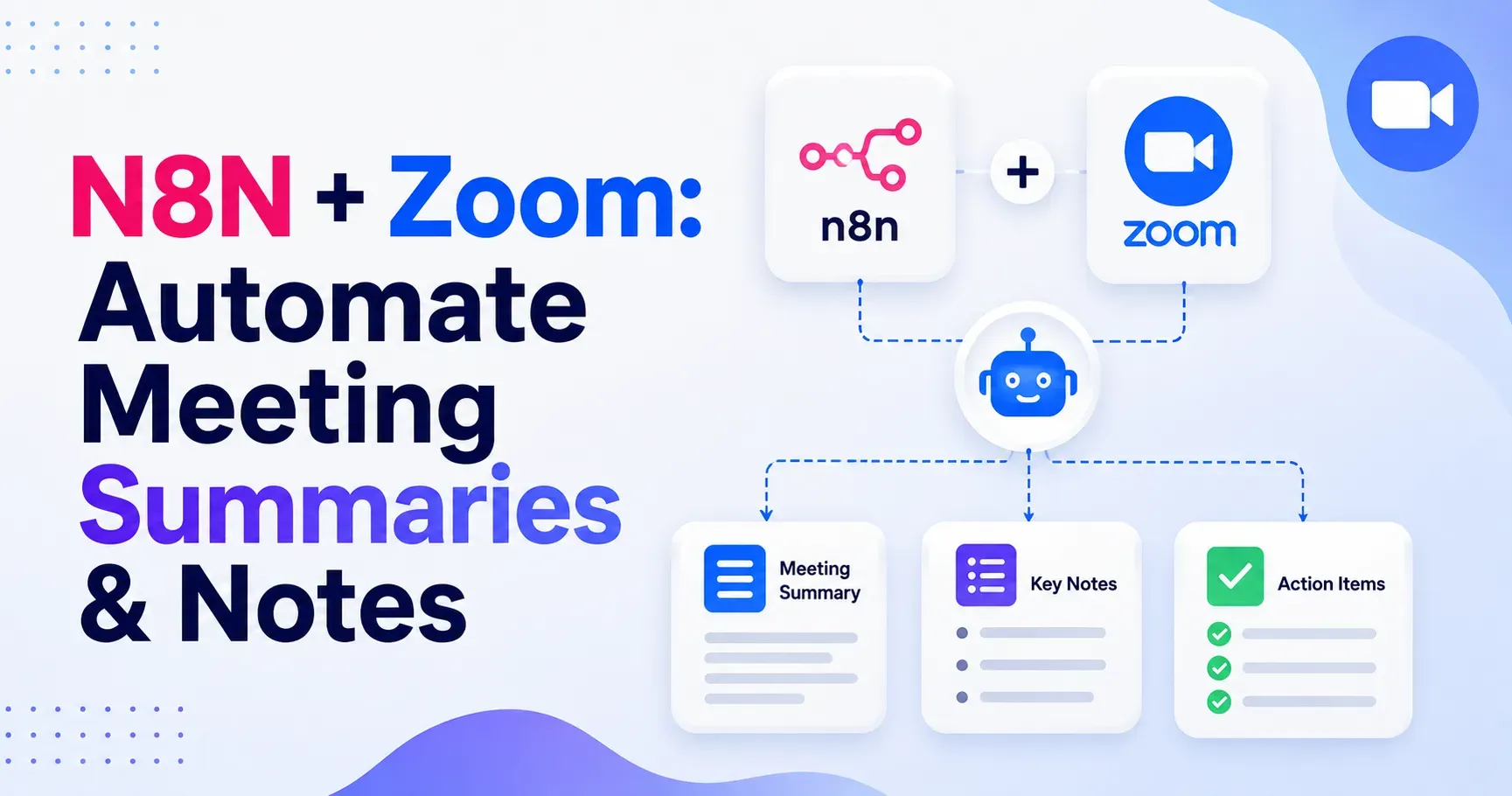
N8N + Zoom: Automate Meeting Summaries and Notes
Meetings generate an enormous amount of valuable information, yet most teams still rely on manual note taking, scattered documents, and forgotten follow ups. Combining n8n with Zoom offers a powerful way to automatically capture, summarize, and distribute meeting notes without anyone having to lift a finger during the call. This guide walks through exactly how to build an automated meeting summary workflow using n8n and Zoom, why this integration is so valuable, and the best practices to make it reliable and scalable.
What Is n8n
n8n is an open source workflow automation platform that allows you to connect different apps and services together using visual, node based workflows. Unlike many closed automation tools, n8n can be self hosted, giving teams full control over their data, while also offering a cloud hosted version for those who prefer a managed setup. Its flexibility makes it especially well suited for building custom automations that go beyond simple, prebuilt integrations.
Why Automate Zoom Meeting Summaries
Manually writing meeting notes is time consuming, inconsistent, and often incomplete, especially in fast moving teams that run many calls each week. Automating this process with n8n and Zoom solves several common problems at once.
Consistency Across Every Meeting
Automated workflows apply the same summarization process every time, ensuring that no meeting is left undocumented simply because someone forgot to take notes.
Faster Follow Up
Summaries and action items can be generated and distributed within minutes of a call ending, rather than hours or days later when memory of the discussion has already faded.
Reduced Manual Workload
Team members can focus fully on the conversation itself instead of splitting attention between participating and typing notes.
Searchable, Centralized Records
Automated workflows can push summaries directly into shared tools like Notion, Slack, or Google Docs, creating a searchable archive of every meeting over time.
How the n8n and Zoom Integration Works
At a high level, the workflow listens for a Zoom event, such as a recording becoming available, retrieves the recording or transcript, processes it using an AI summarization step, and then delivers the resulting summary and action items to your chosen destination, such as email, Slack, or a project management tool.
Step by Step Guide to Building the Workflow
Step 1: Set Up Your Zoom App Credentials
Create a Zoom app through the Zoom Marketplace to generate the API credentials needed for n8n to access meeting data. Depending on your use case, you may need access to cloud recordings, transcripts, or webhook event subscriptions.
Step 2: Connect Zoom to n8n
Within n8n, add the Zoom credentials using the generated API keys or OAuth setup. This connection allows n8n to communicate directly with your Zoom account and retrieve meeting related data.
Step 3: Trigger the Workflow When a Recording Is Ready
Configure a webhook trigger node in n8n that listens for the Zoom event indicating a cloud recording has completed processing. This ensures the workflow only runs once the transcript or recording file is actually available.
Step 4: Retrieve the Meeting Transcript
Use an HTTP request node to pull the transcript file generated by Zoom cloud recording. If your Zoom plan does not include automatic transcription, you can instead retrieve the audio file and pass it through a separate speech to text service.
Step 5: Clean and Format the Transcript
Add a function node to clean up the raw transcript text, removing timestamps, speaker labels if unnecessary, or formatting artifacts that could interfere with accurate summarization.
Step 6: Summarize the Transcript Using AI
Connect the cleaned transcript to an AI language model node configured to generate a structured summary. Prompt the model to extract key discussion points, decisions made, and specific action items along with responsible owners where mentioned.
Step 7: Format the Output Clearly
Use a function or formatting node to organize the AI generated summary into clear sections, such as meeting overview, key discussion points, decisions, and action items, making the final document easy to scan quickly.
Step 8: Deliver the Summary to Your Preferred Destination
Add nodes to send the finished summary wherever your team actually works, such as posting it to a Slack channel, appending it to a Notion database, emailing participants directly, or creating tasks automatically in a project management tool based on identified action items.
Step 9: Add Error Handling and Notifications
Include error handling nodes to alert you if the workflow fails at any stage, such as a missing transcript or an API rate limit issue, so problems can be caught and resolved quickly rather than silently failing.
Step 10: Test with Real Meetings and Refine
Run the workflow against several real meetings of different lengths and formats to confirm that summaries remain accurate and useful, then adjust your AI prompt or formatting logic based on the results.
Example Workflow Structure
- Zoom webhook trigger node listening for recording completed events
- HTTP request node to fetch the transcript file
- Function node to clean and prepare the transcript text
- AI summarization node to generate structured meeting notes
- Formatting node to organize the summary into clear sections
- Destination nodes such as Slack, Notion, email, or a task management tool
- Error handling node to catch and report failures
Advanced Enhancements to Consider
Automatic Action Item Assignment
Extend the workflow to detect names mentioned alongside action items and automatically assign corresponding tasks to the correct team members in your project management tool.
Multi Language Support
For teams operating across regions, add a translation step before or after summarization to ensure notes are accessible to all participants regardless of the language spoken during the call.
Meeting Type Specific Templates
Create different summary formats depending on meeting type, such as sales calls, internal standups, or client check ins, by branching the workflow based on meeting title or calendar metadata.
Sentiment and Engagement Analysis
Add an additional AI step to analyze overall sentiment or engagement levels during the call, which can be particularly useful for sales or customer success teams tracking client relationships over time.
Best Practices for Reliable Automation
- Always test webhook triggers thoroughly since Zoom event timing can occasionally vary
- Keep AI prompts specific and structured to ensure consistent summary formatting
- Store raw transcripts alongside summaries in case manual review is ever needed
- Set up monitoring alerts so failed workflow runs are caught quickly
- Regularly review generated summaries to catch and correct any recurring inaccuracies
Common Mistakes to Avoid
Relying on AI Summaries Without Any Review
While AI generated summaries are highly useful, occasional review helps catch errors, especially for high stakes meetings such as client negotiations or legal discussions.
Overcomplicating the Initial Workflow
Start with a simple, reliable workflow covering the core steps before adding advanced features like sentiment analysis or automatic task assignment.
Ignoring Data Privacy Considerations
Meeting transcripts often contain sensitive information. Ensure your storage destinations and AI providers align with your organization's data privacy and security requirements.
Failing to Handle Longer Meetings Properly
Very long meetings may exceed the input limits of certain AI models. Consider breaking transcripts into chunks and summarizing each section before combining them into a final overview.
Who Benefits Most from This Automation
Sales Teams
Automatically generated call summaries help sales representatives stay focused during conversations while ensuring accurate records of client needs and next steps.
Customer Support and Success Teams
Consistent documentation of client calls improves handoffs between team members and provides valuable historical context for future interactions.
Remote and Distributed Teams
Teams spread across time zones benefit significantly from automated summaries that keep everyone informed without requiring live attendance at every meeting.
Project Managers
Automatic extraction of action items and decisions helps project managers track progress and accountability without manually reviewing entire recordings.
Conclusion
Combining n8n with Zoom transforms meeting documentation from a manual, inconsistent chore into a reliable, automated process that saves time and improves accountability across your organization. By setting up a workflow that captures transcripts, generates structured AI summaries, and delivers them directly into the tools your team already uses, you can ensure every meeting produces clear, actionable, and easily accessible records. Start with a simple version of the workflow, test it thoroughly with real meetings, and gradually expand it with advanced features as your needs grow.
Frequently Asked Questions
Do I need a paid Zoom plan to use this automation
Cloud recording and automatic transcription features typically require a paid Zoom plan, though workflows can be adapted to use separate transcription services if needed.
Can n8n handle very long meeting recordings
Yes, though very long transcripts may need to be split into smaller sections before summarization to stay within the input limits of most AI language models.
Is self hosting n8n necessary for this workflow
No. n8n offers both self hosted and cloud hosted options, and either can be used to build and run this meeting summary automation depending on your preference for data control.
Where can the generated meeting summaries be sent
Summaries can be delivered virtually anywhere, including Slack, email, Notion, Google Docs, or project management tools, depending on how the final workflow nodes are configured.
Is this automation secure enough for sensitive meetings
Security depends on how the workflow is configured, including where transcripts are stored and which AI provider is used. Organizations handling sensitive information should review data handling policies carefully before implementation.