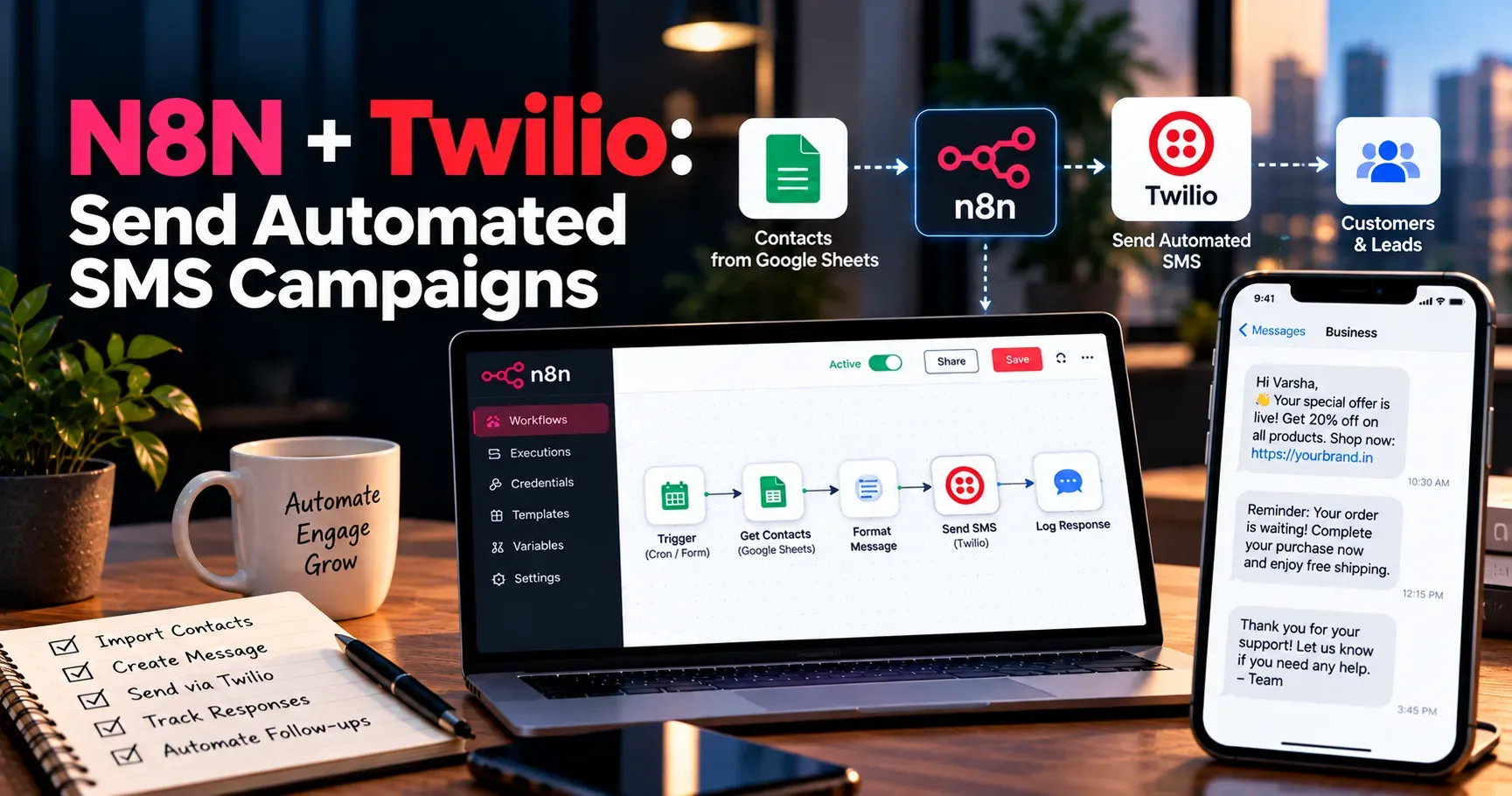
N8N + Twilio: Send Automated SMS Campaigns
Text messages get opened. That simple fact is why SMS remains one of the most direct ways to reach customers, whether you are sharing an appointment reminder, a flash sale, an order update, or a quick check in. The problem is that sending texts by hand does not scale, and many dedicated SMS marketing platforms come with monthly fees, limited customization, and little control over your data.
There is a flexible alternative. By combining n8n, an open workflow automation tool, with Twilio, one of the most widely used messaging platforms, you can build SMS campaigns that fit your business exactly. You can pull contacts from a spreadsheet or CRM, personalize each message, send on a schedule, respect opt outs, log results, and react when customers reply. You can do all of this with a visual builder and very little code.
This guide walks you through the full process. You will learn how the two tools work together, how to set up your accounts, how to build a working campaign workflow, how to handle replies and opt outs, and how to stay compliant and scale safely. It is written for marketers, founders, and developers alike.
Why Use n8n and Twilio Together?
Twilio provides the messaging infrastructure. It gives you phone numbers, carrier connections, delivery tracking, and an API for sending and receiving texts. n8n provides the logic. It lets you decide who gets a message, when, what it says, and what happens next.
Together they offer several advantages:
- Full control over your campaign logic, including filters, delays, and conditions.
- Connections to hundreds of other apps, so your contacts can come from Google Sheets, Airtable, HubSpot, a database, or a web form.
- A visual editor that makes workflows easy to read, share, and improve.
- The option to self host n8n for greater control over data, or to use the cloud version for convenience.
- Pay as you go messaging with Twilio, so you only pay for the texts you send.
- The ability to grow from a small test to a large campaign without changing tools.
In short, you get the flexibility of custom development without building an entire system from scratch.
What You Need Before You Start
Gather these items before building your first workflow:
- An n8n instance, either n8n Cloud or a self hosted installation.
- A Twilio account with a verified phone number and available balance.
- A Twilio phone number, or a Messaging Service, that can send SMS in your target country.
- A contact list with phone numbers in international format and proof of consent.
- A clear idea of your campaign goal and the message you want to send.
Do not skip the consent part. Sending marketing texts to people who did not agree to receive them can lead to blocked messages, fines, and damage to your reputation. We will return to compliance later in this guide.
Step 1: Set Up Your Twilio Account
Create an Account and Get Your Credentials
Sign up for Twilio and complete the verification steps. From the Twilio Console, find your Account SID and Auth Token. These act like a username and password for the API. Keep them private, and never paste them into public documents or shared screenshots. For extra safety, you can create an API key and secret in Twilio and use those instead of your main Auth Token.
Get a Sender for Your Messages
You need a sender identity. Depending on where you send messages, this could be a local long code number, a toll free number, a short code, or an alphanumeric sender ID. Rules vary by country, so check Twilio's guidance for your destination.
Consider a Messaging Service
A Twilio Messaging Service groups one or more senders into a single pool and adds useful features such as sender selection, scaling, and opt out management. For campaigns, using a Messaging Service is usually a better long term choice than sending from a single number.
Complete Registration Requirements
If you send to the United States from a local number, carriers require registration for application to person messaging, commonly called A2P 10DLC. Toll free numbers also require verification. Registration takes time to approve, so start early. Unregistered traffic may be filtered or blocked, which would ruin an otherwise well built campaign.
Use a Trial Account for Testing
A Twilio trial account lets you test with verified numbers, though messages may include a trial notice and you can only send to numbers you have verified. Use it to confirm that your workflow works before you upgrade and send to real customers.
Step 2: Connect Twilio to n8n
Open your n8n workspace and create a new workflow. Add a Twilio node, then create new credentials. Enter your Account SID and your Auth Token, or your API key details if you chose that route. Save the credentials and run the built in connection test if one is offered.
The Twilio node in n8n supports sending SMS and other actions such as making calls and sending WhatsApp messages. For SMS, you will provide three main fields: the sender, the recipient, and the message body. The recipient and message can be filled with expressions that pull data from earlier nodes, which is the key to personalization.
Start with a simple test. Add a Manual Trigger, connect it to a Twilio node, enter your own verified phone number as the recipient, type a short message, and run the workflow. When the text arrives on your phone, you know the connection works.
Step 3: Prepare Your Contact List
Your campaign is only as good as your data. A clean list improves delivery, reduces cost, and protects your sender reputation.
Choose a Data Source
For beginners, Google Sheets is an easy option. Create a sheet with columns such as first name, phone number, consent status, segment, and last message date. n8n also connects to Airtable, Notion, HubSpot, Salesforce, PostgreSQL, MySQL, and many other sources through built in nodes or the HTTP Request node.
Use International Phone Format
Twilio expects phone numbers in E.164 format. This means a plus sign, the country code, and the number with no spaces or symbols. A United States example is +14155551234. Numbers stored in other formats will fail, so clean them before sending.
Store Consent Clearly
Add a column that records whether each person opted in, when they agreed, and how. This record protects you if anyone questions your practices. In your workflow, only contacts marked as opted in should ever reach the sending step.
Segment Your Audience
Segments let you send relevant messages. You might group contacts by location, purchase history, interest, or stage in your sales process. Relevant messages get better response and fewer opt outs.
Step 4: Build the Campaign Workflow
Now you can assemble the main workflow. Here is a reliable structure that works for most campaigns.
1. Start With a Trigger
Choose how the campaign begins. A Schedule Trigger runs the workflow at a set time, such as every Tuesday at 10 in the morning. A Webhook node starts it when another system sends a request, such as a form submission or a new order. A Manual Trigger lets you launch a one time blast on demand.
2. Read Your Contacts
Add a Google Sheets node, or the node for your chosen data source, and set it to read rows. Use filters to fetch only the contacts you want, such as those with consent set to yes and a segment that matches your campaign.
3. Clean and Validate the Data
Add a Code node or a Filter node to remove rows with missing or invalid phone numbers. Here is a short example that keeps only numbers in the correct format:
const items = $input.all();
return items.filter(function (item) {
 const phone = String(item.json.phone || "").trim();
 return /^\+[1-9]\d{7,14}$/.test(phone);
});
You can also use the Remove Duplicates node so nobody receives the same text twice in one run.
4. Loop Through Contacts in Batches
Add the Loop Over Items node, sometimes called Split In Batches in older versions. This processes contacts in small groups instead of all at once. Batching helps you respect rate limits and makes it easier to pause or troubleshoot.
5. Personalize the Message
Inside the loop, add your Twilio node. Set the recipient to the phone number field from your data. In the message field, use an expression to insert the first name and other details. For example, a message might read: Hi {{ $json.first_name }}, your appointment is tomorrow at 3 PM. Reply STOP to opt out.
Keep messages short, clear, and useful. Identify your business, state the purpose, and give a simple next step. Avoid all capital letters, excessive punctuation, and vague urgency.
6. Add a Wait Node for Throttling
After the Twilio node, add a Wait node to pause briefly between batches. This spreads out your sending and avoids hitting queue or rate limits. The right pause depends on your sender type and Twilio account limits.
7. Log the Results
After each send, write the outcome back to your sheet or database. Save the message identifier returned by Twilio, the time sent, and the status. This log helps you track performance and prevents accidental repeat sends.
8. Handle Errors
Enable error handling in your Twilio node so one bad number does not stop the entire campaign. You can also create a separate workflow that starts with the Error Trigger node and sends you an alert through email or chat when something fails.
Step 5: Track Delivery Status
Sending a message does not guarantee that it arrived. Twilio reports statuses such as queued, sent, delivered, undelivered, and failed. To capture these updates, set a status callback URL on your messages or Messaging Service that points to an n8n Webhook node.
Build a second workflow that receives these callbacks, finds the matching contact using the message identifier, and updates the record with the latest status. Over time you will see delivery rates and can spot problems such as invalid numbers or carrier filtering. Numbers that repeatedly fail should be removed from your list.
Step 6: Handle Replies and Opt Outs
A good SMS program is a conversation, not a one way broadcast. It must also make leaving easy.
Respect Opt Out Keywords
Twilio handles standard opt out keywords such as STOP on many number types and blocks further messages to people who use them. If you use a Messaging Service, you can also manage opt out settings there. Do not try to work around these blocks. Instead, mirror the status in your own records so you stop including those people in future runs.
Capture Incoming Messages With a Webhook
Point your Twilio number or Messaging Service incoming message setting to an n8n Webhook, or use the Twilio Trigger node where available. When a customer replies, n8n receives the sender number and message text. You can then branch with an IF or Switch node to decide what to do.
Ideas for Reply Automation
- If the reply is STOP, mark the contact as opted out in your database.
- If the reply is YES, confirm an appointment or send a coupon code.
- If the reply is HELP, send contact information and support instructions.
- If the reply is a question, notify a team member in Slack or email so a human can answer.
Consider Using AI Carefully
n8n can connect to language models that draft replies or classify messages. If you use this, keep a human in the loop for sensitive topics, limit what the system can promise, and never let it invent prices, deadlines, or policies.
Sample Campaign Ideas You Can Build
Appointment Reminders
Read appointments from a calendar or database, and send a reminder a day before and a few hours before. Include the time, location, and a way to reschedule. These messages usually get strong response and reduce no shows.
Abandoned Cart or Follow Up Nudges
When a shopping platform sends a webhook for an abandoned checkout, wait a set time, then send a friendly reminder with a link back to the cart. Only do this for customers who agreed to receive texts.
Order and Shipping Updates
Trigger a text when an order ships or is delivered. Transactional messages like these are helpful, expected, and build trust.
Promotions and Event Invitations
Send a limited offer or event invitation to a defined segment. Include a clear end date and a simple call to action. Do not send promotions too often.
Feedback and Review Requests
A few days after a purchase or service, send a short message asking for a rating or review. Keep it light and make responding easy.
Welcome Sequences
When someone joins your list, send an immediate welcome text that confirms their subscription, explains how often you will message, and reminds them how to opt out. Then send a follow up a few days later with something useful.
Compliance and Best Practices
SMS marketing is regulated in most regions. Rules differ by country, but the core principles are consistent. This section is general information and not legal advice, so consult a qualified professional for your situation.
Get Clear Consent
Collect permission before sending marketing texts. Explain what people will receive, how often, and that message and data rates may apply. Keep a record of the consent.
Identify Your Business
Every message should make it clear who is sending it. Include your brand name so recipients recognize you.
Make Opting Out Easy
Include opt out instructions in your messages, at least in the first message and periodically after that, and honor requests immediately.
Watch Sending Hours
Avoid sending at night or very early in the morning. Many regions have rules about quiet hours, and it is simply good manners. Use your contacts' time zones if you have that data.
Use Approved Content
Avoid prohibited content categories and misleading claims. Be careful with shortened links, since some carriers filter links that look suspicious. A branded domain can help.
Protect Personal Data
Store credentials in n8n's credential manager, restrict access to your workspace, and keep only the data you need. If you self host, secure your server, use HTTPS, and back up your workflows.
Cost and Scaling Tips
Twilio charges per message segment, and the price depends on the destination country and sender type. Long messages or messages with special characters may be split into several segments and cost more. Keep texts concise and check your character count. Twilio also adds carrier fees in some regions, so review the pricing page for your country.
n8n Cloud is billed by plan and workflow executions, while self hosting has infrastructure costs. When you scale, watch these areas:
- Batch size and wait times, so you avoid rate limit errors.
- Sender throughput, which depends on your number type and registration level.
- Workflow execution time, especially for large lists.
- Database performance, if you store status updates for many messages.
- Queueing options in n8n for handling large volumes reliably.
Test with a small segment first. If your first run goes well, expand to larger groups in stages.
Troubleshooting Common Problems
- Authentication errors usually mean the Account SID or Auth Token is wrong, or the credentials were not saved correctly.
- Invalid number errors often come from missing country codes or extra symbols. Clean your data into E.164 format.
- Messages stuck in queued status may point to rate limits, insufficient balance, or registration issues.
- Undelivered or filtered messages can result from unregistered traffic, blocked content, suspicious links, or numbers that no longer exist.
- Trial account restrictions can stop messages to unverified numbers. Upgrade the account when you are ready for real contacts.
- Webhook problems often come from using a test URL instead of a production URL, or from an n8n instance that is not reachable from the internet.
- Duplicate sends usually happen when a workflow is triggered twice or when the send log is not checked. Add a check for previous sends.
A Simple Launch Checklist
- Twilio account verified and funded, with sender and registration completed.
- n8n credentials created and tested with a single message.
- Contact list cleaned, formatted, and filtered by consent.
- Message written, reviewed, and includes brand name and opt out language.
- Batching and wait settings configured.
- Logging and error alerts turned on.
- Status callback and reply workflows connected.
- Small test segment sent and reviewed before the full launch.
Final Thoughts
Combining n8n and Twilio gives you a powerful, flexible way to run SMS campaigns without depending on a rigid marketing platform. You choose the data sources, the rules, the timing, and the tone. Start small with a single reminder or welcome message, confirm that each part works, and then grow into segmented campaigns with reply handling and reporting.
Most important, treat every text as a message to a real person. Get consent, keep messages useful, make opting out easy, and monitor your results. Do that, and your automated SMS campaigns will feel personal, perform well, and keep customers glad to hear from you.