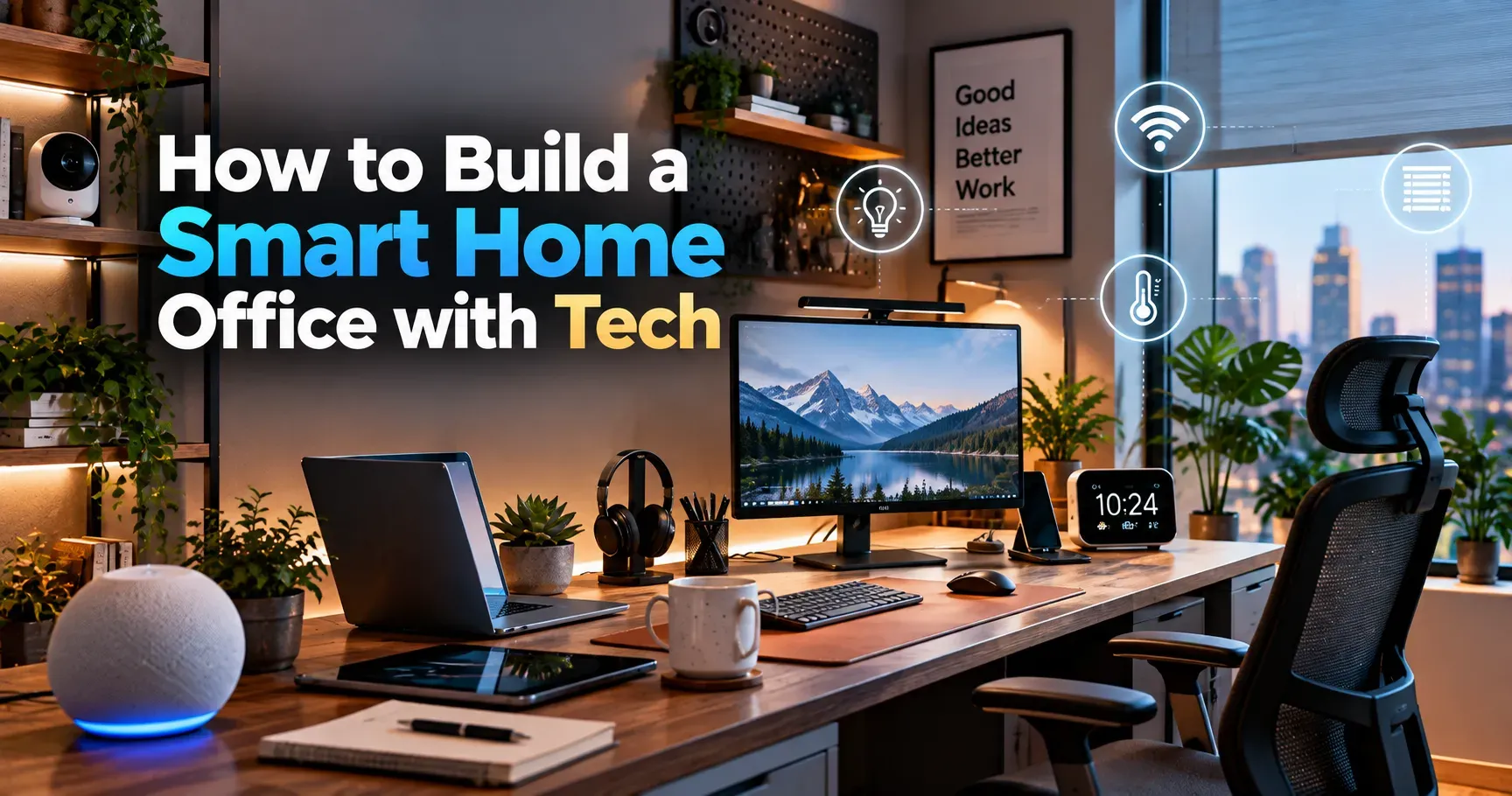
How to Build a Smart Home Office with Tech
Working from home is no longer a temporary experiment. For millions of people, the home office is now the place where careers are built, businesses are run, and important decisions are made. Yet many home offices are still improvised: a laptop on a kitchen table, a tangle of cables under a desk, a weak WiFi signal in the corner, and a chair that leaves you sore by three in the afternoon.
A smart home office solves these problems with thoughtful planning and the right technology. It is not about buying every gadget on the market. It is about building a workspace that supports your focus, protects your health, keeps your data safe, and removes small daily frictions so you can concentrate on real work.
This guide walks you through every layer of a smart home office. You will learn how to plan the space, choose ergonomic furniture, set up reliable networking, improve lighting and sound, add useful automation, protect your privacy and data, and keep everything tidy. You will also find sample setups for different budgets and a simple plan for building your workspace step by step.
What Makes a Home Office Smart?
A smart home office combines good design with connected technology. The word smart does not mean complicated. It means the workspace adapts to you and helps you work better with less effort.
A truly smart office usually has these qualities:
- It is comfortable, so you can work for hours without pain or fatigue.
- It is reliable, with fast internet, stable power, and backups for important data.
- It is efficient, with automation that handles small repeated tasks.
- It is focused, with lighting, sound, and layout that reduce distraction.
- It is secure, protecting your devices, files, and conversations.
- It is organized, with clean cable management and a place for everything.
Keep this list in mind as you shop. Every purchase should improve at least one of these qualities. If a gadget does not, it probably does not belong in your office.
Step 1: Plan Your Space Before You Buy Anything
The best smart home offices begin with a plan, not a shopping cart. Spending an hour on planning can save you money and frustration later.
Choose the Right Location
If possible, pick a spot that is quiet, has good natural light, and sits close to your router or a strong network connection. A separate room with a door is ideal, but a corner of a bedroom or living area can work well with the right setup. Avoid placing your desk where foot traffic, television noise, or kitchen activity will constantly interrupt you.
Think About Your Work Style
Consider how you actually work. Do you spend most of the day on video calls? Do you write, code, design, or manage spreadsheets? Do you need multiple monitors, or is a laptop enough? Do you handle confidential information? Your answers will shape which tools deserve your budget.
Map Power and Network Needs
Count how many devices you need to power and connect. Note where your outlets and network ports are located. Think about where cables will run so you can avoid awkward tangles later.
Set a Realistic Budget
Decide how much you can spend and rank your priorities. For most people, the order of importance is a comfortable chair and desk, reliable internet, good lighting, a quality webcam and microphone, and then automation and extras. Spend more on the items you touch and use every hour of the day.
Step 2: Invest in Ergonomic Furniture
Technology cannot make up for poor posture. Long hours in an uncomfortable position can lead to back pain, neck strain, and tired eyes, which hurt both health and productivity. Furniture is the foundation of a smart home office.
A Supportive Chair
Look for a chair with adjustable seat height, lumbar support, adjustable armrests, and a seat depth that fits your body. Your feet should rest flat on the floor, your knees should be roughly level with your hips, and your lower back should feel supported. If you can, sit in a chair for several minutes before buying it.
A Height Adjustable Desk
Electric sit stand desks let you change position throughout the day, which can reduce stiffness and help you stay alert. Many models offer memory presets so you can switch between your sitting and standing heights with a single button. Choose a stable desk with enough surface area for your equipment and check the weight capacity if you use heavy monitors.
Monitor Placement
Position your main screen about an arm's length away, with the top of the screen at or slightly below eye level. A monitor arm makes this easy, frees desk space, and lets you adjust the screen for different tasks. If you use two monitors, place them close together and angle them slightly toward you.
Keyboard and Mouse
Your keyboard and mouse should let your wrists stay neutral and your shoulders relaxed. Ergonomic keyboards, vertical mice, and trackballs can help people who experience discomfort. Try a few styles to see what feels natural.
Accessories That Help
A footrest, a laptop stand, an anti fatigue mat for standing, and a wrist support can all improve comfort. Small changes add up over a full workday.
Step 3: Build a Fast and Reliable Network
Nothing frustrates remote workers like a dropped call or a slow upload. Your internet setup deserves careful attention.
Check Your Internet Plan
Make sure your plan offers enough speed for your work, especially upload speed if you join many video calls or share large files. If several people share your connection, consider a higher tier. Run speed tests at different times of day to understand what you actually get.
Upgrade Your Router
An older router can be the weak link. Modern routers support newer WiFi standards that handle many devices at once and offer better range and stability. Place the router in a central, open location, not inside a cabinet or behind a television.
Consider a Mesh System
If your office is far from the router or your home has thick walls, a mesh WiFi system uses several units to spread coverage evenly. This is often more effective than adding a simple range extender.
Use a Wired Connection When Possible
A wired Ethernet connection is usually faster, more stable, and more secure than WiFi. If your desk is near the router, run a cable directly to your computer or docking station. If it is not, powerline adapters or running cable through walls with a professional can help.
Create a Separate Network
Set up a dedicated network or a guest network for smart gadgets, visitors, and entertainment devices. Keeping work devices on a separate network improves security and can reduce interference.
Add a Backup Connection
If your income depends on being online, prepare for outages. A mobile hotspot, a phone with tethering, or a secondary internet connection can keep you working when your main connection fails.
Step 4: Get Your Power and Protection Right
Your equipment, your files, and your work all depend on steady power.
Use a Surge Protector
A quality surge protector defends your computer, monitors, and peripherals from voltage spikes. Avoid cheap power strips without proper protection ratings.
Add an Uninterruptible Power Supply
A UPS provides battery power during short outages so you can save your work and shut down safely. It also keeps your router and modem running, which can preserve your connection during brief interruptions. Choose one with enough capacity for your essential devices.
Use Smart Plugs Wisely
Smart plugs let you turn devices on and off from your phone or on a schedule. They are useful for lamps, fans, chargers, and other simple devices. Do not use them for equipment that should never lose power suddenly, such as your computer or network storage, and always check the plug's power rating.
Consider a Smart Power Strip
Some power strips let you control outlets individually and track energy use. They can also cut power to accessories when your main computer turns off, saving electricity.
Step 5: Design Smart Lighting
Lighting affects your mood, your energy, your eyes, and how you look on camera. It is one of the most powerful and least expensive upgrades you can make.
Use Natural Light Wisely
Position your desk so daylight comes from the side, not directly behind your monitor or in front of your face. Direct sun on the screen creates glare, and a bright window behind you makes you look dark on video calls.
Choose Adjustable Smart Bulbs
Smart bulbs and lamps let you change brightness and color temperature. Cooler, brighter light can help you feel alert during focused work, while warmer, softer light suits the end of the day. Many systems can adjust automatically by time of day, matching your natural rhythms.
Add Task Lighting
A desk lamp with adjustable arms and brightness gives you focused light for reading, writing, and notes without straining your eyes. Choose one with a wide, even glow to avoid harsh shadows.
Light Yourself for Video Calls
A soft light source placed in front of you, slightly above eye level, makes you look clear and professional. A small desk panel or ring light can work well. Avoid placing bright lights directly behind you.
Create Lighting Scenes
Set up scenes such as Focus, Meeting, and Wind Down. With a single tap or voice command, your lights change to the right brightness and color for each activity.
Step 6: Improve Audio and Video Quality
In a remote world, how you look and sound is part of your professional presence. Good equipment shows respect for the people you meet.
Choose a Quality Webcam
Many laptop cameras are mediocre. An external webcam with good resolution, decent low light performance, and reliable autofocus makes a visible difference. Mount it at eye level, since a camera placed too low creates an unflattering angle.
Pick a Clear Microphone
Poor audio is more distracting than poor video. A USB microphone or a headset with a good boom microphone captures your voice clearly and reduces room echo. Place the microphone close to your mouth and use a pop filter if you speak loudly or record content.
Use Headphones for Focus and Privacy
Noise cancelling headphones help you concentrate in busy homes and keep your calls private. Choose a comfortable pair you can wear for hours, and consider a wired or low latency option for important calls.
Control Room Acoustics
Hard, empty rooms create echo. Rugs, curtains, bookshelves, and acoustic panels can soften sound. Even a few soft items can noticeably improve call quality.
Set Up a Clean Background
A tidy shelf, a plant, or a simple wall looks professional. If you use a virtual background, test it first, since some can look unnatural or glitchy.
Step 7: Add Useful Automation
Automation should save time and reduce friction, not create extra work. Start with a few simple routines and expand only when they prove useful.
Choose a Smart Home Platform
Pick an ecosystem that works with the devices you already own, such as Apple Home, Google Home, Amazon Alexa, or Samsung SmartThings. Look for devices that support the Matter standard, which aims to help gadgets from different brands work together more smoothly.
Automate Your Workday Routine
Create a routine that runs when you start work. It might turn on your desk lamp, set your lights to a focus scene, start your standing desk at your preferred height, and silence smart speakers. Another routine can run at the end of the day, turning off equipment and dimming the lights.
Use Presence and Schedule Triggers
Motion sensors or your phone location can trigger actions when you enter or leave the office. A schedule can remind you to stand, stretch, or take a break at regular times.
Set Up Meeting Indicators
A simple do not disturb light outside your door can tell family members when you are on a call. Some setups link the light to your calendar or your video conferencing app so it turns on automatically.
Control Temperature and Air
A smart thermostat, fan, or space heater with a smart plug can keep your office comfortable. An air quality monitor can warn you about high carbon dioxide or poor ventilation, which can make you feel sleepy and unfocused. Open a window or run an air purifier when the numbers rise.
Use Voice Assistants Carefully
Voice control is convenient for lights, timers, and reminders. However, be mindful of microphones in rooms where you discuss confidential matters. Learn how to mute or disable them when needed.
Automate Digital Tasks Too
Smart tools are not only physical. Use calendar automation, task managers, file syncing, and email rules to reduce manual work. Automated backups and password managers save time and protect you from mistakes.
Step 8: Choose Productivity Hardware That Fits Your Work
Monitors
An additional monitor can dramatically improve productivity for many tasks. Consider size, resolution, color accuracy, and connection options. An ultrawide monitor can replace two screens, while a portable monitor helps if you switch locations.
Docking Stations
A docking station lets you connect your laptop to monitors, keyboard, mouse, network, and power with a single cable. It makes starting and ending your day faster and keeps your desk tidy.
Storage and Backup
Use a mix of cloud storage and a local backup drive or network storage. A common approach is to keep three copies of important data, on two types of storage, with one copy off site. Test your backups occasionally to make sure they actually work.
Printers and Scanners
If you use them, choose a reliable model with wireless printing and low running costs. Many people find a compact scanner or a phone scanning app enough for documents.
Note Taking and Whiteboards
A whiteboard or smart notebook can help capture ideas quickly. Some tools digitize handwriting so your notes are searchable and easy to share.
Step 9: Protect Your Security and Privacy
A connected office creates more places for problems to enter. A few good habits protect you and your clients.
Secure Your Network
Change default router passwords, use strong WiFi encryption, and keep router firmware up to date. Disable features you do not need, and consider a router with built in security tools.
Use Strong Authentication
Use a password manager to create unique passwords for each account and turn on multi factor authentication wherever possible. Hardware security keys offer strong protection for important accounts.
Keep Software Updated
Enable automatic updates for your operating system, apps, and smart devices. Updates often fix security problems. Replace devices that no longer receive them.
Be Careful With Smart Devices
Choose reputable brands, review their privacy policies, and disable features you do not need. Keep smart speakers and cameras out of rooms where you discuss sensitive matters, or use hardware mute switches and camera covers.
Consider a VPN and Work Policies
If your employer provides a VPN or other security tools, use them. Follow your company's rules for devices and data, and avoid mixing personal and work accounts.
Protect the Physical Space
Lock your screen when you step away, use a lock for a valuable laptop if needed, and store sensitive paper documents securely. A privacy filter can help if your screen is visible from a window or doorway.
Step 10: Manage Cables and Keep Things Tidy
A messy desk creates a messy mind. Good cable management makes your office look professional and easier to maintain.
- Use cable trays or clips under the desk to hold power strips and excess cable.
- Label both ends of important cables so you can find them quickly.
- Use velcro ties instead of tight plastic ties, since they are easier to adjust.
- Choose cables of the right length instead of leaving long loops.
- Consider wireless peripherals only when reliability is not an issue.
- Add drawer organizers and shelves so supplies stay out of sight.
Clean your desk and equipment regularly. Dust can affect performance, and a fresh space helps you feel ready to work.
Step 11: Support Your Health and Focus
The smartest office is one that looks after the person using it.
Take Regular Breaks
Use timers or smart reminders to stand, stretch, and rest your eyes. A simple habit is to look at something far away for twenty seconds every twenty minutes.
Manage Screen Comfort
Adjust brightness to match the room, use night modes in the evening, and consider anti glare coatings or filters if reflections are a problem.
Add Greenery and Personal Touches
Plants, artwork, and a few personal items make the space more pleasant. Studies suggest that a comfortable, personalized environment can improve mood and satisfaction.
Set Boundaries
Try to keep work inside the office space and leave it when the day is over. If you can, close the door, power down equipment, and let your routine tell your mind that work is finished.
Sample Smart Home Office Setups by Budget
Starter Setup
Focus on essentials. Choose a supportive chair, a laptop stand, an external keyboard and mouse, a desk lamp with adjustable brightness, a surge protector, and a decent headset. Improve your WiFi placement and use a wired connection if you can. Add one or two smart plugs for simple automation.
Mid Range Setup
Add a sit stand desk, a good external monitor on an arm, an external webcam and microphone, smart bulbs, a docking station, and a UPS. Upgrade your router or add a mesh system. Set up a simple morning and evening routine.
Advanced Setup
Build a complete workspace with a premium ergonomic chair, a large or dual monitor arrangement, professional lighting for video, acoustic treatment, network storage with automatic backups, environmental sensors, a meeting indicator light, and a full smart home integration with several routines. Add strong security measures and a backup internet connection.
Common Mistakes to Avoid
- Spending on gadgets before fixing comfort, lighting, and internet basics.
- Buying devices that do not work together or with your chosen platform.
- Ignoring ergonomics and paying for it later with pain and fatigue.
- Using weak passwords and never updating smart devices.
- Placing microphones and cameras in sensitive spaces without controls.
- Over automating, so simple tasks become complicated and unreliable.
- Letting cables and clutter take over the workspace.
- Forgetting backups until data is lost.
A Simple Plan to Build Your Smart Office This Month
- Week one: Plan your space, measure everything, and set your budget. Fix the biggest comfort problem first, usually the chair or desk height.
- Week two: Improve your network and power setup with a better router position, wired connection, and surge protection or a UPS.
- Week three: Upgrade lighting, add a webcam and microphone if needed, and improve your call background.
- Week four: Set up two or three helpful automations, strengthen security, organize cables, and create a backup routine.
Review your setup after a few weeks. Note what feels great, what still causes friction, and where your next upgrade should go.
Final Thoughts
A smart home office is not a showroom of the newest gadgets. It is a workspace that fits your life, protects your health, and helps you do your best work. Start with comfort, build a reliable foundation of power and networking, improve your lighting and sound, and only then add automation that genuinely saves time.
Take it one step at a time. Each improvement, from a better chair to a simple lighting routine, makes your working day a little easier. Over time those small upgrades combine into a space that feels calm, capable, and ready for whatever the day brings.